.svg)

-
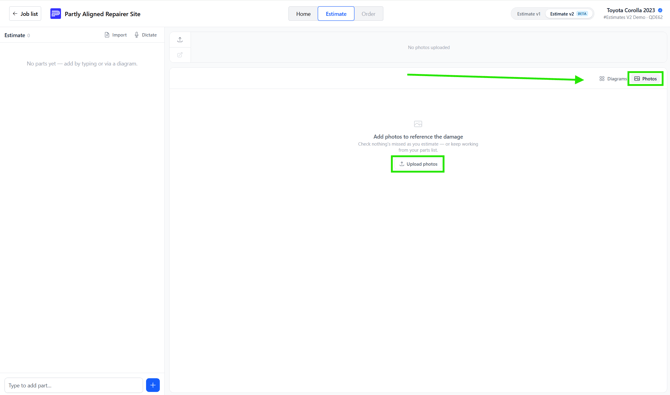
Open the Photos view. In the Diagrams panel, click Photos in the top right (next to Diagrams).
-
Upload your images. Click Upload photos and choose the damage photos for the job.
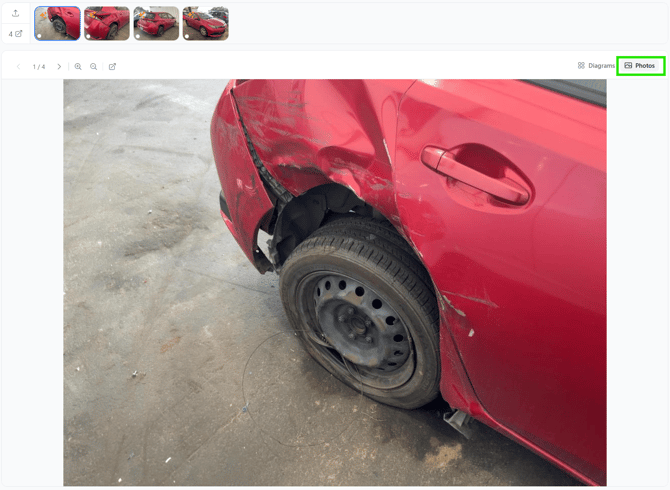
Once uploaded, your photos appear as thumbnails in the strip along the top of the panel. The number (e.g. 4) shows how many you've added, and the icon beside it opens them in a larger view.

There's a quicker route as well, and it's easy to miss. The small upload button on the left-hand edge of the Photos panel does the same job, so you can drop more images onto the job without leaving what you're doing.


