.svg)
-
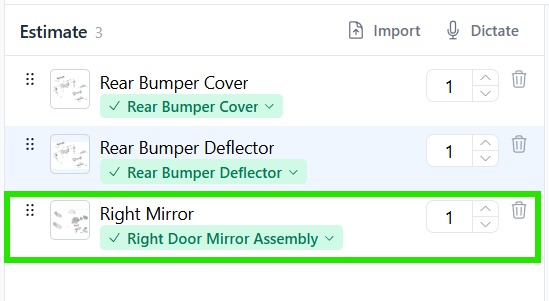
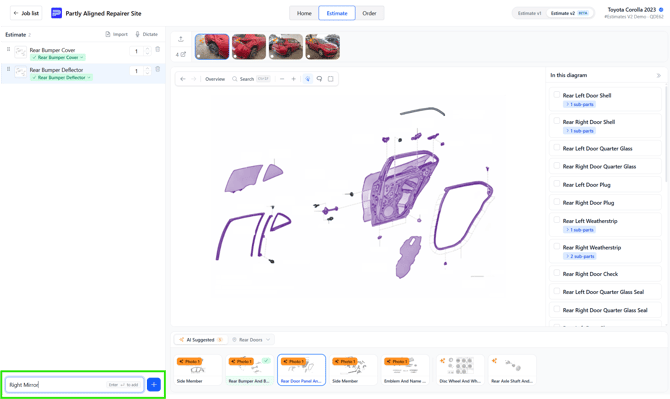
Type the part name. For example,
Right Mirror, then press Enter. -
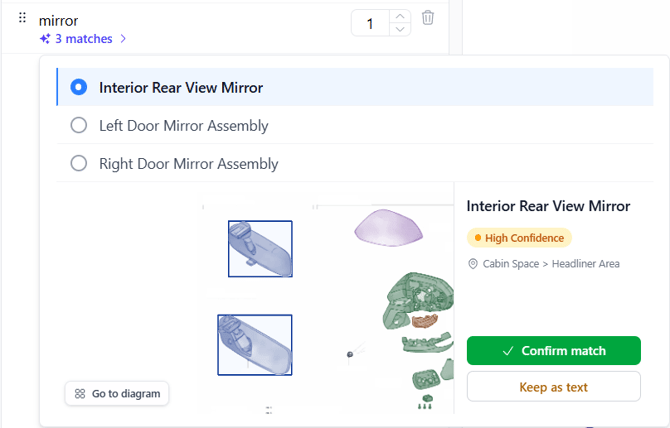
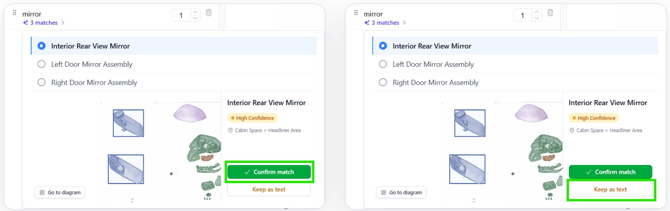
Let it match. If there's a single, direct match, it's matched automatically and shows a green tick. If there's more than one possible part, a shortlist appears instead, each option showing a confidence level and where it sits on the car.
-
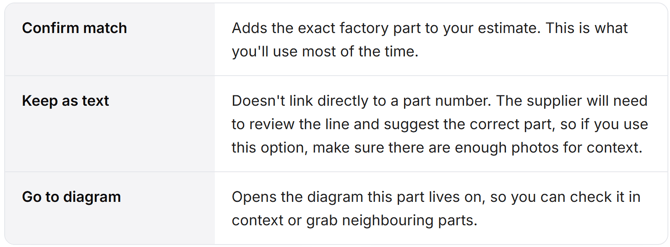
Choose how to add it. Confirm the match, keep your text as typed, or jump to the diagram to check.
Picking the right match
When a word could mean more than one part, Estimates V2 shows the options. Here, typing mirror returns three matches. The most likely one is selected, with a High Confidence label and its location on the car (Cabin Space › Headliner Area).
You have three choices once you've selected a match:
 Once confirmed, the part appears in your estimate with a green ✓ matched tag showing exactly which factory part it's linked to.