Skip to content
  • There are no suggestions because the search field is empty.

The Partly Auto Offers Engine

Auto Offer Collection takes supplier outreach off your plate so you can focus on the work itself. 

What it does:

When it's switched on, Partly searches for offers in tiers. The search widens automatically if a tier doesn't return enough offers. You'll get an email once the job is ready to order. The offer request engine works in order of:

  • Your preferred suppliers
  • Suppliers with matching stock
  • Suppliers in your region
  • The wider NZRN (New Zealand Repair Network)


Table of contents:

  1. How to use it
  2. How it works
  3. Tuning the engine (settings)
  4. Frequently asked questions

How to use it:

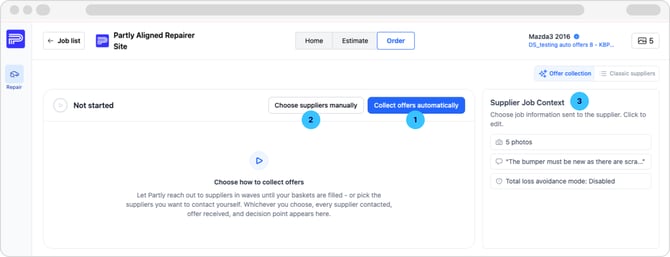
autoofferengine

  1. Collect offers automatically

    1. On the Orders page click "Collect offers automatically" to start the engine. Partly will reach out to suppliers for you in priority order.

  2. Choose suppliers manually

    1. If you know exactly who you want, you can use the classic flow. Pick suppliers yourself as you normally would. You can switch between the two on any job.

  3. Supplier Job Context

    1. Photos, notes, and the total loss avoidance setting will be shared with every supplier as usual.

    2. If you're unfamiliar with the supplier context menu see the article here.
  4. Collection Complete
    1. The collection is complete when there are enough quotes to place the order. You can adjust this in the engine settings menu. (See here)
    2. When the offer collection is complete you'll receive a notification and/or an email letting you know your parts are ready to order.

If you want more quotes after the collection is complete you can resume the search and the engine will pick up where it left off! You can also manually add any suppliers you'd like if they weren't contacted automatically.
How it works:

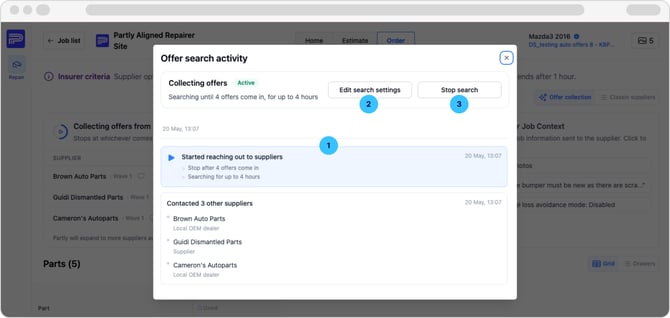
With the engine running you can click "Activity" on the Orders page to see a log of who it's sending requests to.

engineactivitylog

  1. Timeline

    1. A running log of every action the engine takes. New suppliers appear here as the search widens, with the reason they were added.

  2. Edit search settings

    1. Change the conditions that decide when the engine stops searching. Changes apply to the current search immediately.

  3. Stop search

    1. End collection. Any offers already received stay where they are. No new requests are sent.


Tuning the engine:

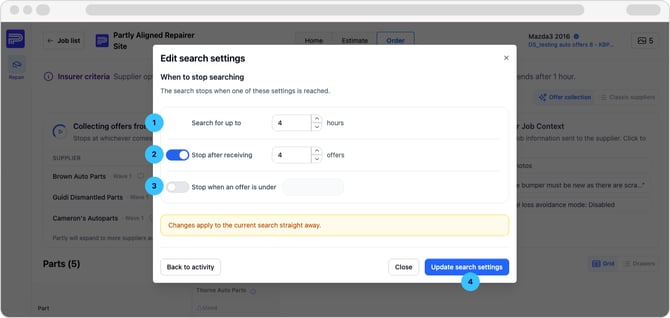
The engine stops at whichever of these conditions is met first. You can adjust them to suit your preferences. 

tuningtheengine

  1. Search for up to a time limit

    1. Default is 4 hours.

  2. Stop after receiving x baskets

    1. Default is 4 baskets. A basket is complete when a single supplier has responded with offers covering every part on the job.

  3. Stop when an offer is under a set price

    1. Off by default. Set a number and the engine stops as soon as a basket comes in under that total price.

  4. Update search settings

    1. Saves your changes and applies them to your current search.


FAQ:

  • How do I set my preferred suppliers?

    • Go to Settings → Vehicle Make Preferences. (Link Here)

    • Suppliers you set here are contacted first on every job before suppliers with matching stock, regional suppliers, or the wider network. Without preferred suppliers set, the engine still runs; it just starts from the matching-stock wave.

  • What if no offers come back?

    • The engine keeps widening the search until the time limit is reached. If you're still short on offers, stop the search and switch to Choose suppliers manually, or rerun with adjusted settings.

  • Can I run the engine and send a manual request on the same job?

    • Yes. The two work side by side. Use Manage suppliers on the Order page to send a manual request to any supplier the engine hasn't reached.

  • Can I have different preferred suppliers for different branches?

    • Preferred suppliers are set per account. If you operate multiple sites with different supplier preferences, contact helpdesk@partly.com and we'll help you sort it out.

  • Does the engine cost anything extra?

    • No. It's part of your existing Partly plan.


We’re not done! Further improvements in the pipeline.

We’re continuously refining the Repair App based on your feedback. From smoother estimating to smarter part sourcing, there’s more on the way, but as always, we’d love to hear your ideas at helpdesk@partly.com.