.svg)
Two ways to find a diagram
At the top of the Diagrams view, "Find a diagram by" gives you two routes. Use whichever matches how you're thinking about the job.
By AI Suggested
This is where your photos pay off. Estimates V2 reads the damage in your uploaded photos and suggests the most relevant diagrams, tagged with the photo they came from (e.g. Photo 1) and how many parts each holds. They're sorted by relevance, so the likeliest diagrams sit first.
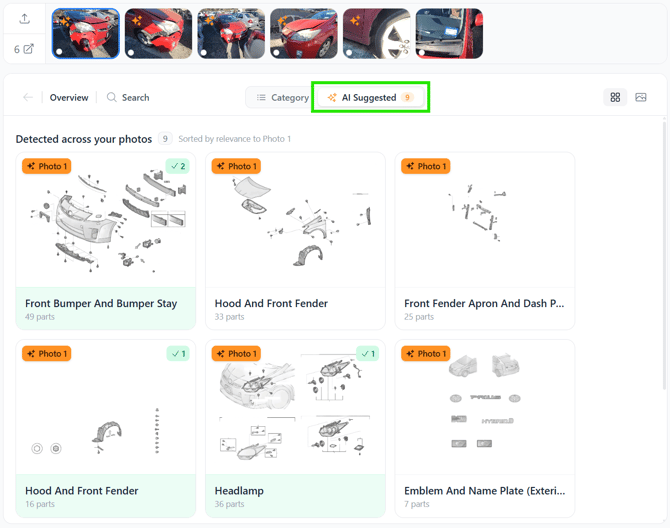
Look closely at each card and you'll notice two different markers. An orange Photo 1 tag means the damage for that diagram is visible in the photo itself. A card showing only the three twinkly stars, with no photo tag, means the damage wasn't directly visible, and the diagram has instead been assumed from the surrounding surface damage. It's worth double checking these ones against your photos before confirming.
By Category
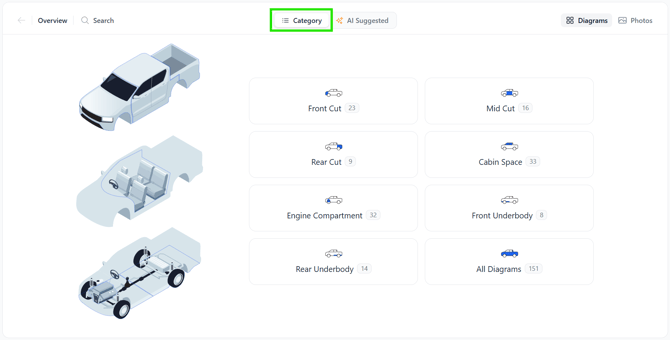
Browse the car by section, using cards such as Front Cut, Mid Cut, Rear Cut, Cabin Space, Engine Compartment, Underbody and more. The number on each card tells you how many diagrams sit inside. Choose All Diagrams to see everything.
Selecting parts from a diagram
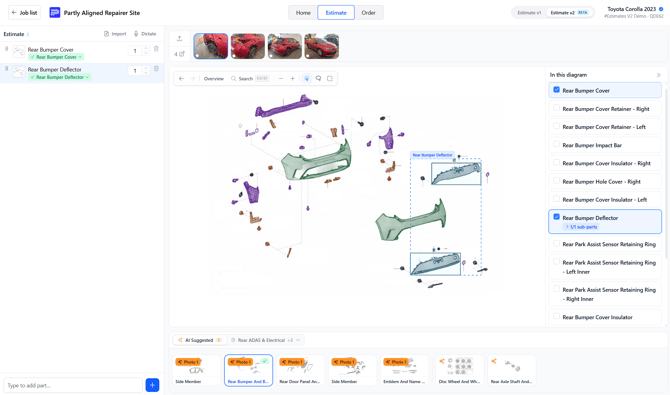
Open any diagram and you'll see the exploded view on the left, with an "In this diagram" checklist of every part on the right. Tick a part to add it to your estimate.
- Find the part in the list. Scroll the In this diagram panel, or click a part in the drawing to highlight its row.
- Tick its checkbox. The part is added to your estimate on the left immediately, already matched to this vehicle.
- Expand sub-parts if needed. Some rows show › sub-parts. Click to reveal smaller components (clips, brackets, sensors) you can add individually.
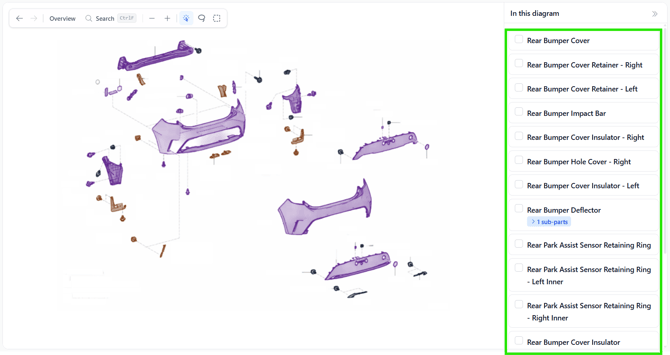
As you tick parts, they highlight on the drawing so you can see exactly what you've selected. A ticked part turns blue in the list and turns green in the diagram.
Moving between diagrams
Getting back to all diagrams view. 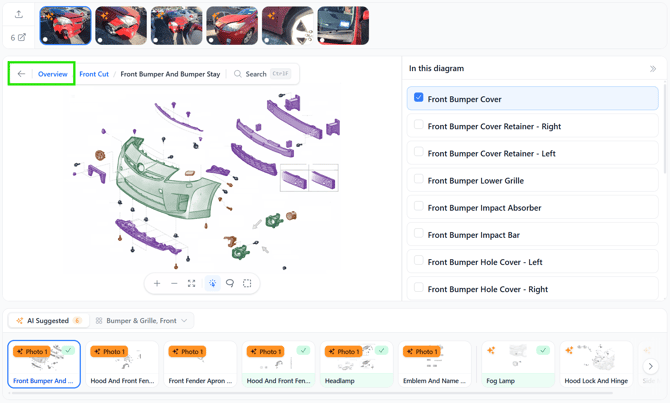
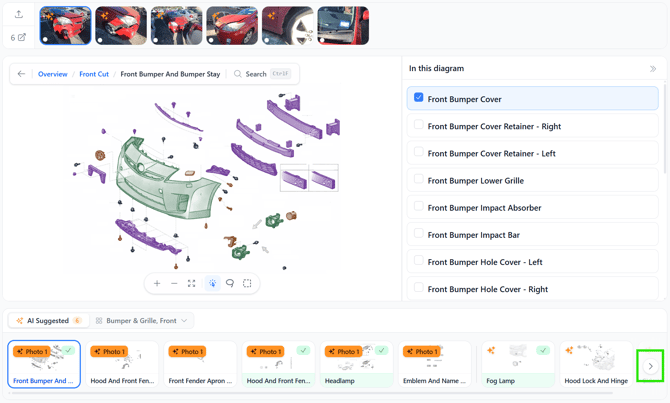
How to scroll through suggested diagrams.