.svg)
-
Open Settings → Members In the left sidebar, go to Settings, then under Organisation choose Members. This page lists everyone on your team and their status.
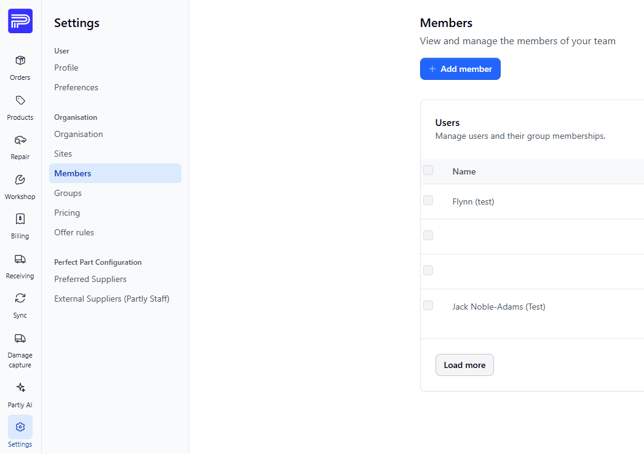
- Click “Add member” and pick an invite type.
Click the blue + Add member button. Choose Single invite to add one person, or Bulk invite to add several at once.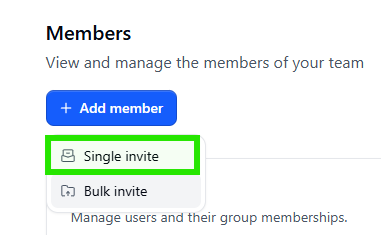
- Fill in the invitation details.
In the Invite user window, enter the person's email address. Then set the options that apply and, if needed, assign them to one or more Groups.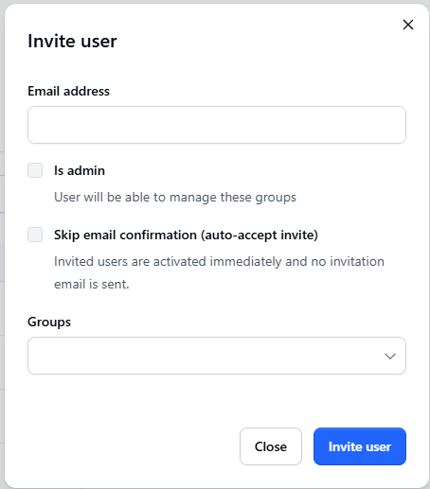
- Send the invite.
Click Invite user. The new person appears in the Members list. Unless you ticked Skip email confirmation, they'll receive an email invitation to accept.
GOOD TO KNOW
|
What the options mean Is admin Gives the member permission to manage the groups they belong to. Leave unticked for standard members. Skip email confirmation (auto-accept invite) Activates the member immediately with no invitation email sent. Use this when you’re setting someone up directly. Groups Assigns the member to one or more groups, which control what they can see and do. You can leave this empty and set it later. |
MEMBER STATUSES
|
Confirmed The member accepted the invite and is active. Expired The invitation lapsed — re-invite to send a fresh one. |