.svg)
What messaging does
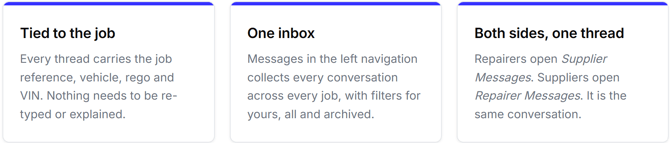
Messaging connects the repairer and the supplier on a single job. Each thread is bound to a job reference, so both sides are always looking at the same vehicle and the same parts.
Start a conversation with a supplier
Conversations begin from the job itself, so the thread inherits the right context from the start.
1. Open Supplier Messages
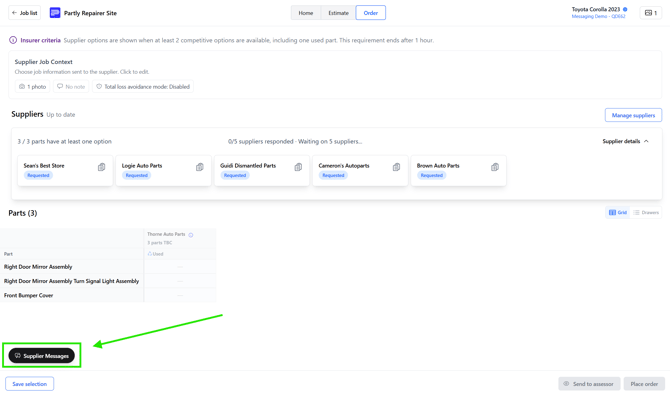
On the job's Order tab, select Supplier Messages in the bottom-left corner. The button is available once suppliers have been requested on the job.
2. Choose a supplier
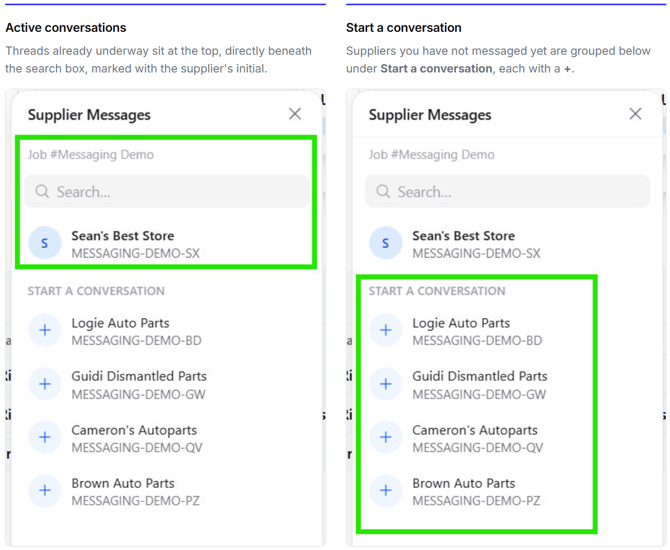
The panel lists every supplier on the job with its own reference. Select the + next to a supplier to open a new thread. Use the search box when the list runs long.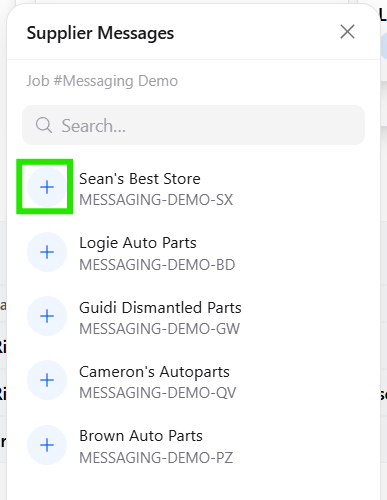
3. Write and send
Type in the message box at the bottom of the panel and select the send arrow. Your messages appear in blue on the right of the thread, stamped with the time and date.
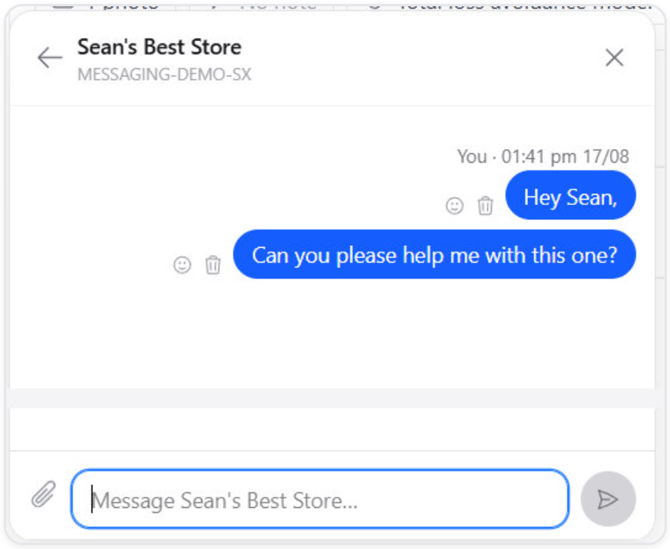

Inside a conversation
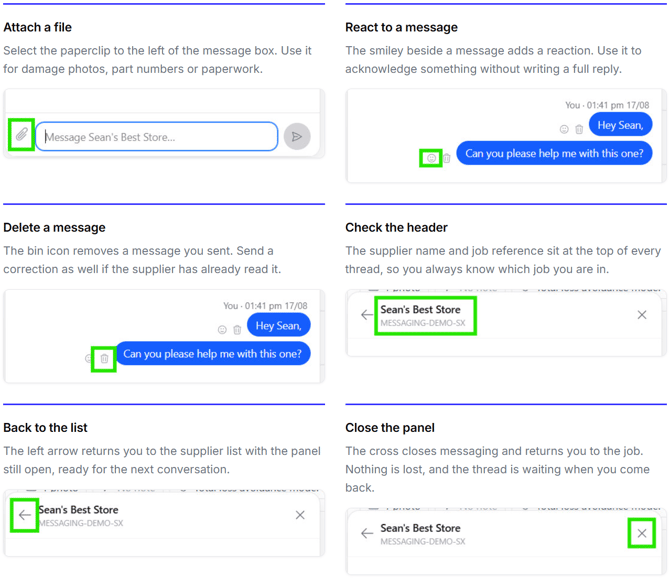
Six controls cover everything you need in a thread.
How the supplier list is ordered
Once a conversation exists, the panel separates the suppliers you are already talking to from the ones you are not.
The Messages hub
The panel is for one job. The hub is for all of them, listing every conversation you have in one place.
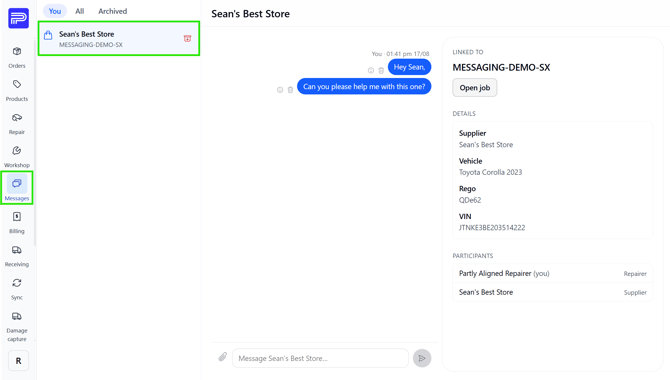
1. Open Messages from the navigation
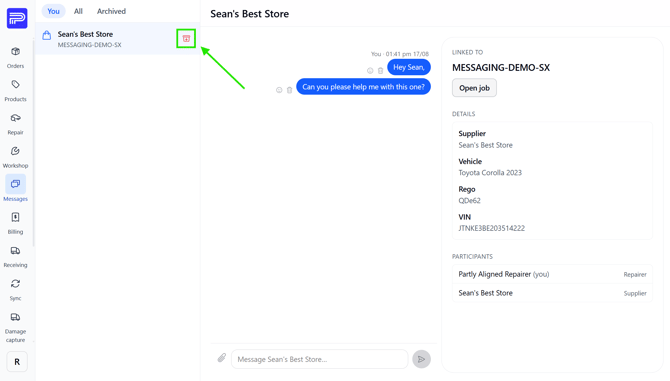
Select Messages in the left navigation. Filter the list with You, All or Archived across the top.
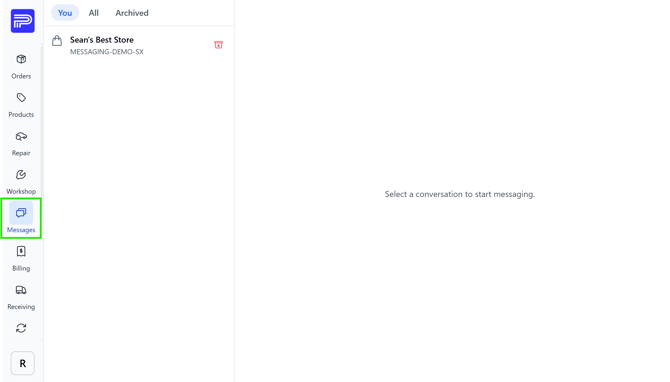
2. Select a conversation
Choose a supplier from the list to open the full thread with the job reference underneath the name.
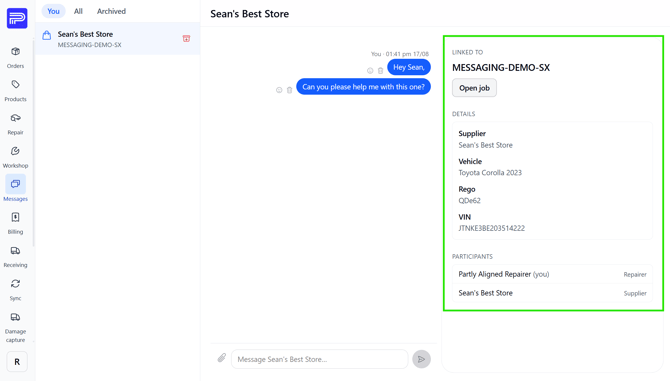
3. Check the job context
The right-hand panel shows what the conversation is linked to: supplier, vehicle, rego and VIN, plus every participant and their role.
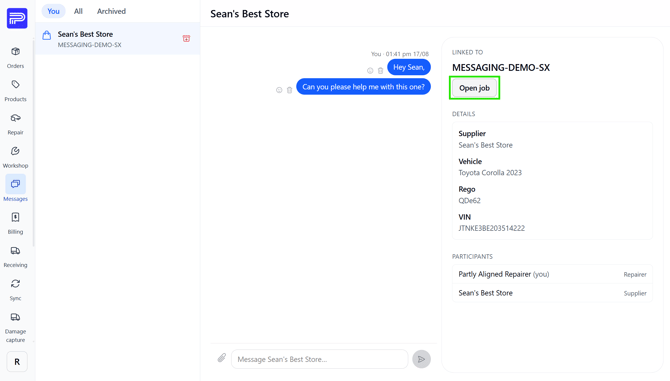
4. Jump back to the job
Select Open job to go straight to the order behind the conversation.
5. Archive when it is finished
Select the archive icon on a conversation to clear it from your list. Archived threads stay available under the Archived filter.