.svg)

Table of Contents
Section 3. Completing a Job: Step-by-step Guide
Section 1. Overview
This guide covers how to set up the Partly integration in PanelQuote and complete your first job, from selecting parts through to syncing freight back into your quote. For issues, missing steps, or feature requests, email helpdesk@partly.com.
Section 2. Integration Setup
1. Select Quotes on the PanelQuote Homepage
2. Select the Manage this Quote icon
3. Select Parts and Purchases
4. Select Partly as your Parts Management System
5. Select Setup Partly Integration Now
6. Sign in to your Partly account
⚠️ Already logged in? If you're already logged into Partly and the integration doesn't install correctly, log out of Partly first, then log back in before retrying. This is required for the integration to install successfully. This is especially important if your admin access was set up recently.
7. Confirm Integration Installation
8. Integration confirmed
Section 3. Completing a Job: Step-by-step Guide:
Partly + PQ Full Job Video Walkthrough:
Step-by-step Guide:
1. Choose Partly as your Parts Management System.
2. Open the job and select the photos.
3. Scroll down to the Partly section and confirm the rego.
4. Build your estimate using Partly's diagrams or the VIN‑match simple estimate feature.
5. Choose your suppliers and save your selection.
6. In Panel Quote, select Save Parts then Update Job to save your parts and pricing.
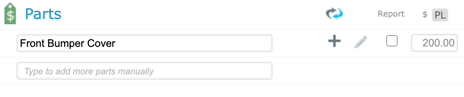 Prices will appear grey, parts selected, not yet ordered.
7. Review your basket and place an order in Partly.
8. Once the supplier confirms the order, sync your freight price to Panel Quote and save the job.
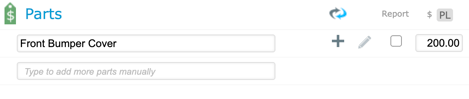 Prices will turn black, order placed and confirmed.
Section 4. Key Buttons
The following interactive demos show where to find each key button.
Save selection (in Partly's Supply page)
Save Parts (in PanelQuote)
Update Job #[job number] (in PanelQuote)
FAQ
⚠️ Already logged in?
- If you're already logged into Partly and the integration doesn't install correctly, log out of Partly first, then log back in before retrying. This is required for the integration to install successfully. This is especially important if your admin access was set up recently.
Parts or prices not showing in PanelQuote?
- Confirm a supplier has been selected and saved for each part in Partly.
- In PanelQuote, select Save Parts then Update Job.
Freight not appearing?
- Confirm the supplier has updated or confirmed the order in Partly.
- Press Save Parts again in Panel Quote.
NOTE: PanelQuote requires a job to have at least one image and a valid rego entered to connect to Partly.
In all cases, please contact Partly support to resolve the issue.
Email us at helpdesk@partly.com.