.svg)
Partly Supplementary Order Video Walkthrough:
How to Complete Supplementary Orders: A Step-by-Step Guide:
1. Adding New Parts:
-
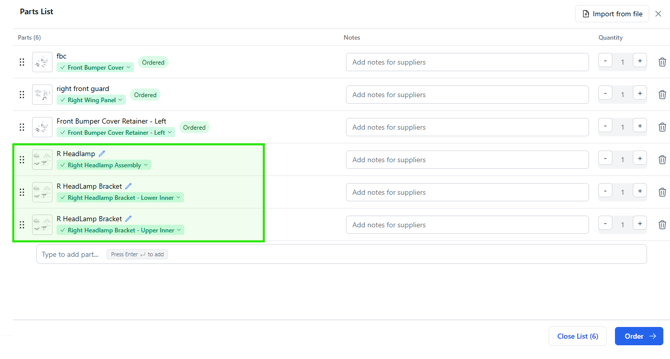
Add your supplementary parts to the job using the standard estimation workflow.
-
They will appear in the parts list without an "Ordered" status.
Note: Do not delete previously ordered parts from your parts list.
2. Review in Order Tab
-
Go to the Order tab and review the Job Summary to add additional photos or notes to the order. For more information on this, please see Job Summary.
3. Move to the Order Tab
-
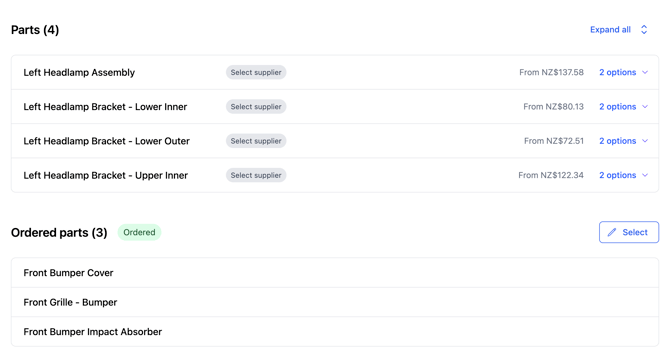
If you scroll down you can see the previously ordered parts and your new additional components, separated into Parts and Ordered parts.
How to Reorder prior parts.
-
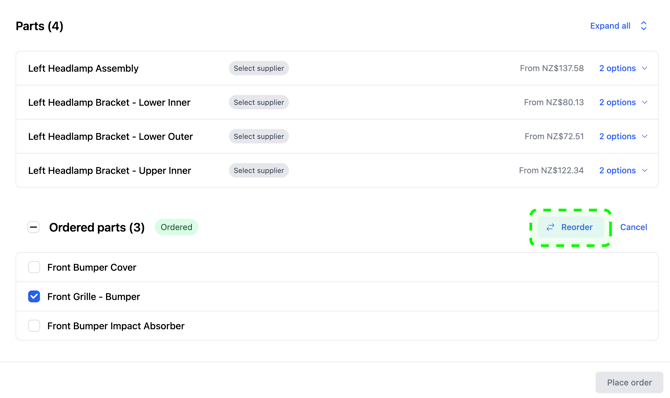
If you wish to reorder a part from your previous order list, you can do this in addition to ordering new components, or you can do a simple reorder on its own by skipping to this step.
- Choose Reorder, this will add the selected parts to your new supplementary order.
Choose Suppliers
-
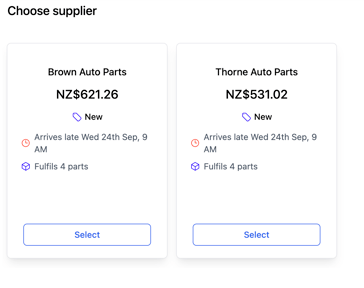
If an Instant Basket is available, click Select on your preferred supplier.
-
Otherwise: Select Add More Suppliers and select all the suppliers you want to send an offer to.
If you have followed this process only your new parts (or selected reordered parts) will be sent to the supplier.
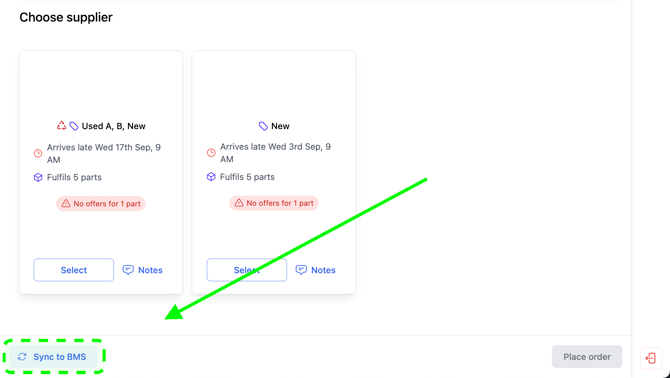
Sync to BMS
-
After selecting your suppliers but before placing the order, click Sync to BMS.
Place the Order
-
Click Place Order.
-
You’ll return to the Home tab.
-
You will now see two orders:
-
Your original order.
-
The Supplementary parts order.
-
🙋Where to go for support
- Email: helpdesk@partly.com
- Visit: Partly Repairer Knowledge Base