.svg)
Meet the new Unified App! Familiar look, far more power. We’ve added a host of features to help you perform better than ever. Read on to see what’s new and how to use it.
Note: When your team has transitioned across, please email helpdesk@partly.com to have your notification emails redirected to the Unified App.
User & Account Management
There are currently three user permissions:
- General user: Access to Orders/Requests, Products, Sync and basic settings.
- Admin: Access to General user + Intelligence and more advanced settings.
- Accounts: Access to Billing portal
If you are missing any groups or have users in the wrong group, please don't hesitate to contact helpdesk@partly.com so we can quickly make adjustments. - All users can now change their name and password at any point.
- Head to settings, select profile and edit the details as you wish!
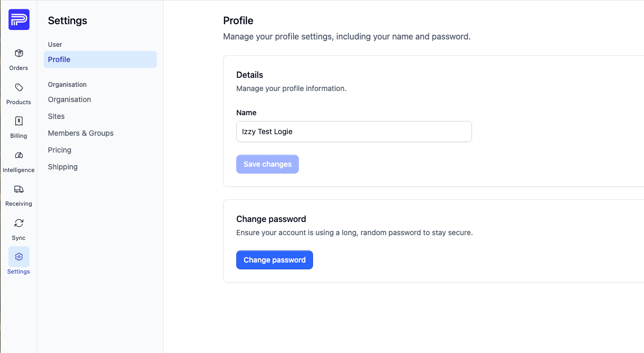
- Admins can now manage information about your organisation, including
- Store name
- Notification emails - you can also have multiple in the Unified App!
- Addresses
Watch the video in full screen below or read the instructions for how to get there!- Head to settings -> Select sites and click on the three dots to right of the site name.
- Select the edit option and adjust your site details as needed.
- Admins can now also invite and remove users
- Inviting users
- Firstly, new users need to create an account using the following link -> https://app.partly.com/auth/sign-up
- Your new user will then need to confirm their email through a confirmation email, which will be sent to their inbox
- Admin users can then head to settings -> select the 'Members & Groups' tab and click '+Add' -> 'Member'.
- Enter their email address, add them to their relevant group and click 'Invite user'.
- Firstly, new users need to create an account using the following link -> https://app.partly.com/auth/sign-up
- Inviting users
-
-
- Your new user will be sent an email to accept the invitation to your organisation. Once they have accept they can log in!
Watch the video/interactive tutorial below in full screen below.
- Your new user will be sent an email to accept the invitation to your organisation. Once they have accept they can log in!
-
-
- Removing users
- Admin users can then head to settings -> select the 'Members & Groups' tab and select the group the user they wish to remove is located in.
- Click the three dots to the right of the user, then select 'Remove'.
- Removing users
Intelligence
The one you have been waiting for! Below, we provide a little more detail on what the insights actually mean.
- Total Part Opportunity: Every part you offered to sell either instantly or through an offer request.
- Total Opportunity Value: The total value of your total part opportunity.
- Conversion Rate:
- The conversion funnel
- Categorises every opportunity into outcome buckets, either converted or a lost reason.
- Part-level Breakdown
- This breaks down every part opportunity and specifies how your part performed in each competitiveness category.
This is only just the beginning of Intelligence, and there are many more insights to come so, stay tuned for future intelligence product updates!
Billing Portal
Through the billing portal, you are able to
- View of all your invoices and history
- See a monthly sales summary
- Breakdown of your monthly orders
- Credit requests
- and so much more to come!
This has been an exciting release, and we’re already building on it.
As always, please don’t hesitate to reach out with feedback, issues, or just to say hello.
Many thanks,
Team Partly!!