.svg)
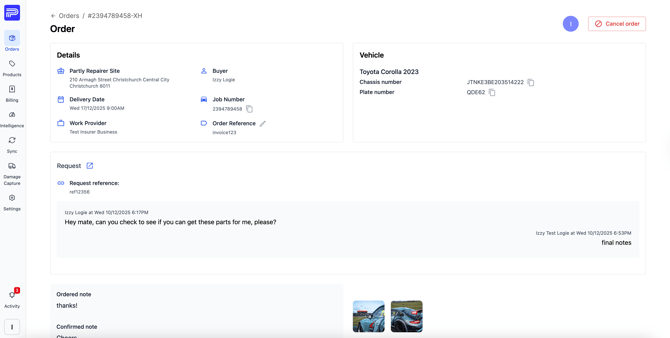
Steps for marking parts as returned.
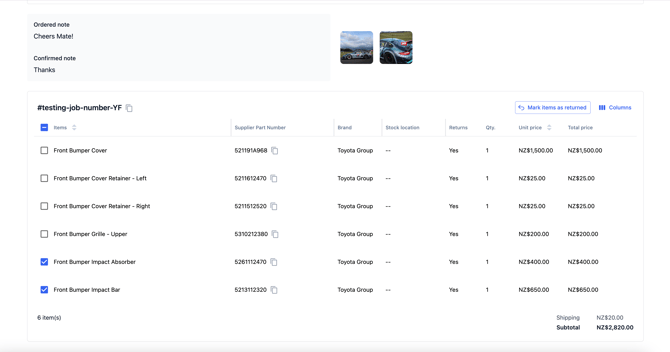
1. Select the parts that need to be returned by clicking the checkbox in front of the part/s.
2. Click 'Mark items as returned' in the top right-hand corner.
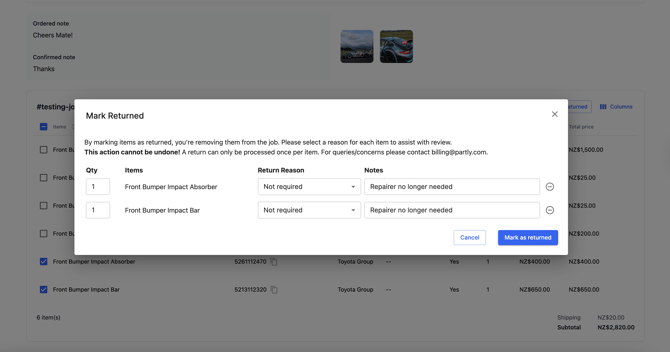
3. Select the correct return reason and add a note to help with the validation process. Then you can click 'Mark as returned'.
Note: You cannot undo this action.
4. Now you can see the parts marked as returned and our team will work to validate the credit.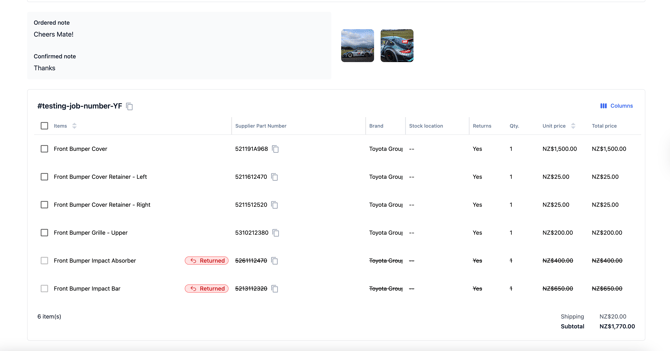
Steps for adding an invoice/order reference number to an order.
1. Once an order is confirmed, Click into the order and find order reference in the 'Details' section.
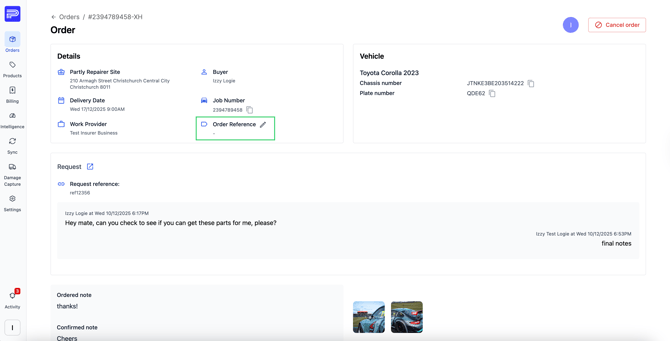
2. Click the pencil icon, enter your invoice/order reference number and then click save.
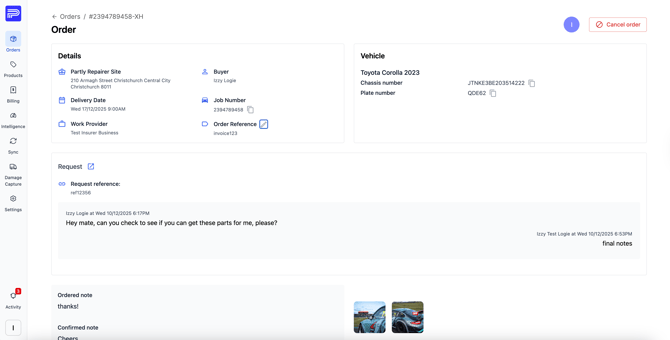
3. Now you should see your invoice/order reference number visible in the 'Details section'. This number can be edited at any time.