.svg)
Table of Contents:
- Recommended Workflow.
- When you first open the Order Page.
- Viewing instant offers.
- Viewing supplier details.
- Reviewing available baskets and offers.
- Ordering or Sending for Assessment.
Recommended workflow:
A typical Order page workflow is:
-
View your instant offers.
-
Send your parts list to additional suppliers if needed.
-
Review your available Parts Baskets and Offers.
-
Finalise parts and suppliers in the basket.
-
Proceed to ordering or insurer assessment.
When you first open the Order page:
When you open the Order page, you will see:
-
Your selected parts list
-
Your Insurer Rules if applicable.
-
Available supplier offers.
-
Parts basket options
-
An order status overview showing supplier activity.
Viewing your Instant Offers:
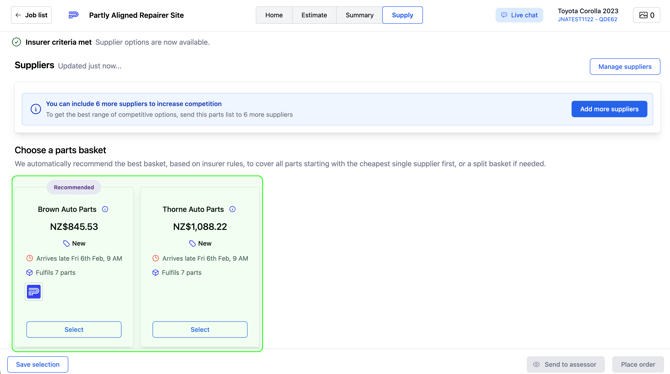
When the Order page opens, instant offers may already be available for some parts.
-
These offers are gathered automatically from supported suppliers, allowing you to quickly see available options without requesting pricing.
-
Supplier responses may continue to arrive while you are reviewing parts, so availability and pricing can update over time.
-
The order status overview shows supplier coverage and response progress so you can quickly see how many order options have been found.
Viewing Supplier Details:
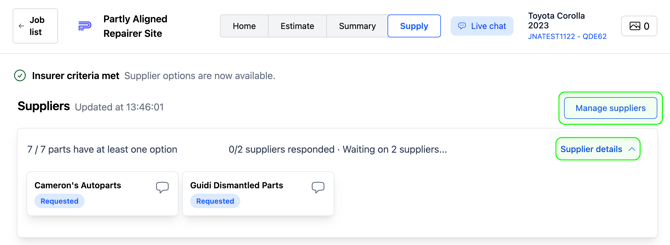
If you need to review supplier responses in more detail, select "Manage Suppliers" or “Supplier details”. This opens the supplier details panel where you can see:
-
Suppliers contacted.
-
Offers received or declined.
-
Alternative supplier options.
Sending your parts list to additional suppliers
-
If supplier coverage is limited or you want more competitive options, you can send your parts list to additional suppliers.
- Simply click "Manage Suppliers" and add any additional suppliers you want to quote and hit Send.
Reviewing available Baskets and Offers:
As supplier responses arrive, Parts Baskets will be created based on available supplier offers.
You can review available baskets or individual parts and compare:
-
Pricing differences, delivery dates and part quality.
-
If supplier responses are still pending, you can return later to review updated offers.
- If a supplier has quoted some but not all of your parts list, you can see the reasoning why. This is shown in the supplier notes section, and appears when hovering over their basket.
How to handle Bulk or Assembly priced parts:
- Some parts will come from the Supplier as either a Bulk or Assembly priced part. This is a bundle of two or more parts that must be purchased together and are priced with a single overhead cost.
- Please make sure to check these offers.
- You can hover over "Fulfils X parts" to see which parts are included.
- These assembly priced parts are often the most competitive offers, so please make sure you're checking them!
Ordering or Sending for Assessment:
-
When you are confident in your basket selection, proceed to ordering or insurer assessment to continue the job workflow.
If you are sending parts for insurer assessment, you must include justification for your parts selection in the notes.
Congratulations you've now mastered the Partly ordering process!
- If you're still feeling unsure about something, or feel that this article could use some improvement. Please do reach out to us at the helpdesk.
- Email: helpdesk@partly.com